
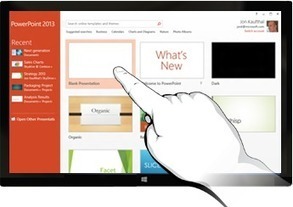

See the new features of PowerPoint 2013.


|
Scooped by
Robin Good
onto Presentation Tools February 3, 2013 12:17 PM
|
 Scoop.it!
See the new features of PowerPoint 2013.
If you want to know what characterizes the new PowerPoint 2013 from the version you have been using unitl now, here is all you need to know.
Key new features you should be aware of:
Now it’s possible to interact with PowerPoint on most any device including a Windows 8 PC. Using typical touch gestures, you can swipe, tap, scroll, zoom, and pan your way through your slides, and really feel the presentation.
For more info check: http://www.microsoft.com/office/preview/en/powerpoint-2013-preview
http://www.microsoft.com/office/preview/en/try-office-preview

 Your new post is loading...
 Your new post is loading...
Your new post is loading...
Scoop.it!
Robin Good's insight:
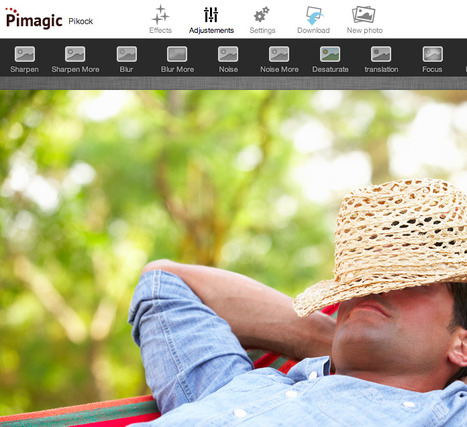
Pimagic is an excellent and super-intuitive free online image editor accessible to anyone without needing to download, register, login or install anything. You can easily upload any image you have, and crop it, or apply to it one of several presets which allow you to easily improve it. Pimagic also offers a set of visual effects, similar to those available in Instagram. Images can be saved in either .jpg or .png file formats. The only function I was not able to find was a resizing tool. Did I miss it? Useful. Easy. Immediate. Free to use. Ad free. Try it out now: http://app.pikock.com/pimagic Thanks to Ana Cristina Pratas for uncovering this gem.

Filomena Gomes's curator insight,
January 19, 2016 8:52 AM
Free picture editing/editor similar to features in Instagram
Scoop.it!
Robin Good's insight:
WalkHub is a free, open-source web app which allows you to record, publish and share walkthroughs of apps, services, web tools and forms by recording your interactions. Key features include:
"WalkHub is built by a community of documentarians that contribute and maintain Walkthrough tutorials about web pages, forms, blogs, community sites, web applications or generally anything that can be done on the Internet." An excellent free alternative to screencast tutorials provides greater longevity and portability across sites, tools and applications. Free to use. Sign-up now: http://walkhub.net/ Example Walkthroughs. http://walkhub.net/public-collections Documentation: http://walkhub.net/documentation User Guide: http://walkhub.net/documentation/user-guide Fork WalkHub on Github: https://github.com/Pronovix/WalkHub
Scoop.it!
Robin Good's insight:
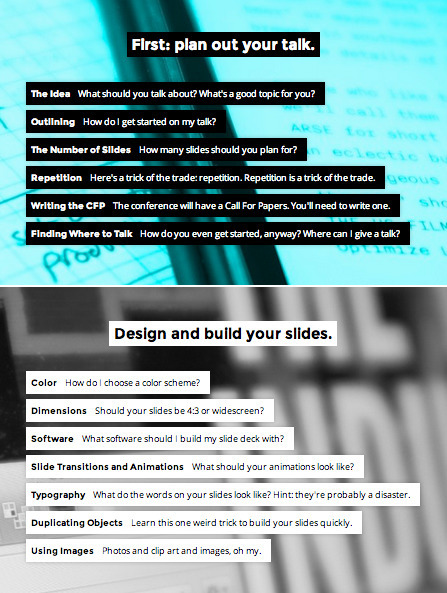
Speaking.io is a free web guide to how to present effectively in public curated by @Zach Holman, a subject matter expert, having spoken at a large number of conferences. The Guide is elegantly organized in multiple sections, each containing a small set of more specific information chapters, and all accessible from the home page index.
Helpful. Well designed. 8/10 Check it out now: http://speaking.io/ Follow Speaking.io on Twitter

Ana Sanchez's curator insight,
April 29, 2014 4:51 PM
A very nice summary of all the points you need to think about when preparing a conference presentation. "Because “imagine everyone's naked” is terrible advice." 
Alex's curator insight,
August 1, 2016 10:51 PM
great point on reacting and reflecting after your presentations to improve for future :)

Lea Marucci's curator insight,
October 27, 2017 10:30 PM
Inquiry Session 3: Delivering Presentations
Scoop.it!
Robin Good's insight:
Recordit.co is a new app for the Mac that allows you to easily record any screen action and to share it instantly with anyone. Recordit is a super-simplified screencasting tool, that takes away any possible complexity or technical issues from recording screen actions. This tool is ideal to share or report a bug you encounter in a certain app or to show where to click and what to choose to someone unfamiliar with a certain online service. Free to use. Download it now: http://recordit.co/ N.B.: It requires Mac OSX 10.9

Jarrod Johnson's curator insight,
February 26, 2014 10:42 PM
A really quick tool for the Mac, but can do the same with Quicktime. Not sure if my firewall is preventing this from running. Recorded 5 seconds of footage from 1/4 of my screen on my MacBook Pro and has been cycling for about 5 minutes. Personally I pay the money and use ScreenFlow, which also allows webcam and microphone input together with screen casting and computer sound. Once finished recording the Screenflow editor pops up to allow you to adjust any of the shot.
Scoop.it!
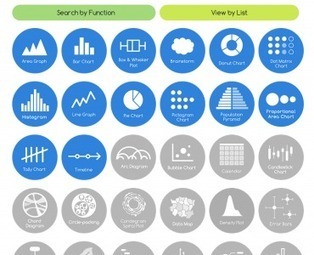
If you've ever struggled with what visualization to create to best show the data you have, The Data Visualization Catalogue might provide just the help you
Robin Good's insight:
The Data Visualisation Catalogue is an on-going project developed by Severino Ribecca which attempts to index and catalogue all of the data visualization approaches available, in order to help journalists, designers and professional communicators identify more easily the type of data visualization most appropriate for their needs. . In the Catalogue there are now over 50 different data visualization approaches that have been identified, and about a third of them have also been documented with a basic description, visual examples, relevant tags to associate it with their possibe best uses, variations, and with a list of alternative tools available to create that type of data chart. . You can browse the catalogue also by using the "Search by Function" which is designed to aid in choosing the appropiate data visualization approach based on the specific communication need at hand, or with the "View by List" approach, which organizes dataviz methods by types. . My comment: Excellent resource for visual communicators of all kinds as it helps you see the great variety of dataviz approaches available. It makes it easier to identify and select relevant solutions according to needs and use. . Check it out: http://blog.visual.ly/the-data-visualization-catalogue/ . . Hat Tip to @LelioSimi

Una Sinnott's curator insight,
February 2, 2014 4:54 PM
A great collection of data visualisation tools, categorised by the characteristics of the data you want to show. 
Juliana Elisa Raffaghelli's curator insight,
February 19, 2014 7:14 AM
Rappresentare: raccontare la realtà in modo tale da attrarre in modo efficace l'attenzione del nostro interlocutore/lettore. In una società iperconnessa e dialogica, fondamentale competenza.
Scoop.it!
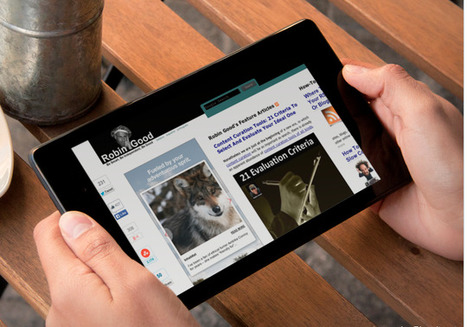
Your iPhone, iPad and other device screenshots automatically processed on the fly to be placed within a realistic environment of your choosing
Robin Good's insight:
Placeit is a great web app which makes it extremely easy to create professional high-quality photo-shots of your product, service or web app inserted within pre-designed environments. There are already over 550 ready-made setups/environments in which you can integrate any image you upload or reference by URL. The images you provide are perfectly integrated into the ready-made shots taking into considerations also perspective and angle of the placement. Most ready-made environments are based on photographs of smartphones or tablets within different locations. Finaly composited images can be download for free at a resolution of up to 640x480. Higher resolutions images are charged according to various monthly plans or by image. Pricing info:
My comment: Great app. Very useful and simple to use. Placeit photo templates and technology makes it super-easy for anyone to create great product shots in seconds and at a fraction of it would cost to creat them in traditional ways. Five stars. Try it out now: https://placeit.net/
Scoop.it!
Robin Good's insight:
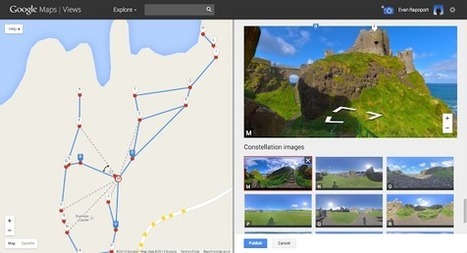
Thanks to "photo spheres" and Google Maps you can now create your own "street view" of any place on earth. To do so you must first shoort "photo spheres" with a dedicated app for your Android smartphone or through your DLSR camera. "Creating Street View from your photo spheres is as easy as connecting the dots into what looks like a “constellation” of stars." You can even connect your photo spheres to our Google's own Street View panoramas.

niftyjock's curator insight,
December 17, 2013 8:51 PM
I really like this idea, but how can I use it from an educational position not just a gee whizz that's cool perspective? Any Ideas? 
Georges Millet's curator insight,
December 18, 2013 8:31 AM
OK for Xmas, vacation pictures are getting more complex but 360° and posted on google maps ...
Scoop.it!
Slidebean is a new cloud-based platform that lets you create amazing presentations in seconds. No cutting or pasting, no font changing. Just worry about the content.…
Robin Good's insight:
Slidebean is a new presentation web app which simplifies to the max the difficulty required to create a visual presentation. Creating content is as simple as typing. The design part is kept completely separate, and you don't have to worry about it as you input your text content. When you decide to go to format your presentation you are offered a set of pre-designed options, just like you get image filters on Instagram. You test and try the ones that are most appropriate for your presentation and you are set to go. Slidebean presentations can contain text, lists, images and video clips and can be viewed on any device or operating system. Finalized presentations can be published online, shared, embedded or downloaded as HTML5 presentations in a .zip file. Free plan available. (up to 5 presentations with up to 10 slides) Pricing: https://slidebean.com/plans Try it out now: https://slidebean.com/ (Thanks to Baiba Svenca for discovering it)

Ali Anani's curator insight,
December 7, 2013 7:57 AM
A design-free fprm of publishing presentations
Scoop.it!
Robin Good's insight:
MoveNote is an excellent free web and mobile app that allows you to create embeddable video presentations that include your video alongside a set of slides or pictures that you have pre-selected. MoveNote is very easy to use. You first upload your PowerPoint slides or individual images and then you start recording your live video by explaining while you highlight and move through the slides. Once completed you can save the composite recording and share it or embed on any website or blog. MoveNote connects directly to your Dropbox, Google Drive or BOX account as well as with Gmail and Microsoft email clients. Free to use. Try it out now: http://www.movenote.com/ iOS version: https://itunes.apple.com/fi/app/movenote/id535115011?mt=8 Check this video: http://www.youtube.com/watch?v=gZgqdAUYMaA Android version: https://play.google.com/store/apps/details?id=com.movenote&hl=en Video tutorials: http://www.youtube.com/user/Movenote/videos Covered before: https://www.scoop.it/t/presentation-tools/p/637597708/2011/11/07/bring-together-video-and-image-presentations-for-your-online-show-movenote
Ali Anani's curator insight,
February 10, 2014 12:34 AM
Speaking presentations- a FREE application. Grab it. 
Becky Roehrs's curator insight,
August 1, 2014 8:50 AM
You can create videos with your presentations: just add your explanations and/or notes to your slides, generate the video-then share via gmail, drive, dropbox, box, or via your chromebook, or use their iOS or Android app, or share via their Google Chrome app.
Check them out at: http://www.movenote.com/
Tutorials (Movenote lite is free for teachers/classrooms): http://edumovenote.tumblr.com/tutorials
Scoop.it!
Robin Good's insight:
Prijector is a new hardware device that eliminates issues arising when different people, who have different computers and setups need to connect to a projector. You know how the story goes. One guy forgets his VGA adapter cable. One another doesn't have a HDMI out plug. And so on. Prijector solves the issue by acting as an intermediary between any computer wanting to present and the projector itself. You connect via WiFi to this device and that's it, you don't have to worry anymore about cables and plugs. Therefore even if you have a conference with multiple presenters, each one of them only needs to connect to the Prijector WiFi access point to be connected to the projector. Key advantages I see:
I haven't tried one but it looks useful. Pre-launch pricing: $119 (later $199) Find out more: http://prijector.com/
Scoop.it!
Robin Good's insight:
The Edynco Micro Lecture Editor is a web app which allows you to import your existing PowerPoint presentation file or any set of image files and to add video, voice over and graphical annotations to each slide separately. The final video pressentation is published to a dedicated URL and can be embedded on any web site. It is also possible to add a pre-recorded audio or music track to each slide instead of recording it in real-time. Free to use for up to 100MB of storage. N.B.: The Micro Lecture Editor is part of a suite of educational content building tools that also include a Learning Map Builder, a Quiz Creator and a Course Manager (Pro versions). Pricing info: http://www.edynco.com/en/pricing/ More info: http://www.edynco.com/en/products/micro-lecture-editor/quick-overview/ Features: http://www.edynco.com/en/products/micro-lecture-editor/features/ Tutorials: http://www.edynco.com/en/support/
Scoop.it!
Robin Good's insight:
SlideSpeech is a free web app which allows you to upload .ppt or .odp presentations and to automatically add a voice over, digitally generated, that will automatically read all of the speaker notes associated to each slide. Alternatively you can record your own voice via SlideSpeech, one slide at a time or upload pre-made audio files to go with each slide. Under the hood there is also a little interaction facility that makes it easy to add a question and a set of possible answers at the end of the presentation. The final presentation is posted online at its own URL, can be embedded in any web site or blog and can also be downloaded as a video or .zip file. A simple stat facility keeps also track of how many view your presentation gets. It is also possible to set whether other people will be allowed to edit and remix your presentation and whther or not you want search engines to index it. Available on the web and on iOS, Android and Windows Phone. My comment: Excellent free tool with lots of good features under the hood. Unfortunately you only have three digital voices to choose from: two males (English, German) and one female. Great download options but .zip is not enabled yet and the video option requires some additional Quicktime plugin to work but it doesn't say which one. Overall promising but with a few rough corners still. Free to use. Try it out now: http://slidespeech.com/ Android: http://www.amazon.com/SlideSpeech/dp/B008OPTKSG/ Windows Phone: http://www.windowsphone.com/en-nz/store/app/slidespeech/bdbed282-890d-4153-9a38-3f7ae035bf01 (thanks to Ana Cristina Pratas for discovering this gem)

LucaVanin's curator insight,
September 4, 2013 3:30 AM
Per aggiungere un commento audio alle slide di Powerpoint 
Carol Sherriff's curator insight,
November 15, 2013 10:34 AM
One of several such tools. A straightforward one to start with. 
Gavin Keeble's curator insight,
November 25, 2013 7:10 PM
Quite an interesting additional tool to add voice to your PPT deck - how useful it might be, who knows - may be for some key decision-maker/influencer who couldn't attend your face-to-face presentation?
Scoop.it!
Robin Good's insight:
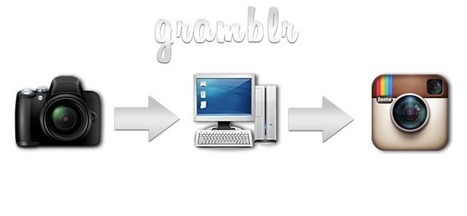
If you are looking for a way to publish your preferred photos that you have on your Mac or PC straight to Instagram, without having to first transfer or copy them to your iOS or Android smartphone, here is a free tool that does exactly this. Gramblr is available for both Mac and PC and it allows you to upload any picture you have sitting on your hard disk to your Instagram account. You can add your comment and hashtags, but you cannot take advantage of the filters you normally available in Instagram. Free. Download for Mac: http://gramblr.com/gramblr.dmg Download for PC: http://bitly.com/WbBEEg More info: https://dl-web.dropbox.com/spa/782adzfe036gp2y/obwuqrvr.jpg
|
Scoop.it!
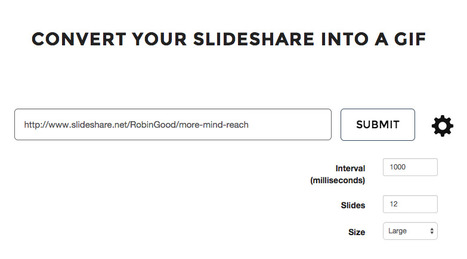
Convert your SlideShare presentations into beautifully animated GIFs in one click
Robin Good's insight:
GIFDeck is a free web app which allows you to convert any published Slideshare presentation into an animated GIF ready to be published. GIFDeck allows you to specify the URL of the slideshare presentation you want to convert, the number of frames to extract from it and the amount of time you want each image to be displayed. Free to use. Excellent way to promote content visually. Works great on Twitter.

elearning at eCampus ULg's curator insight,
May 11, 2016 4:47 AM
That is something I would like to try now ;-)
Scoop.it!
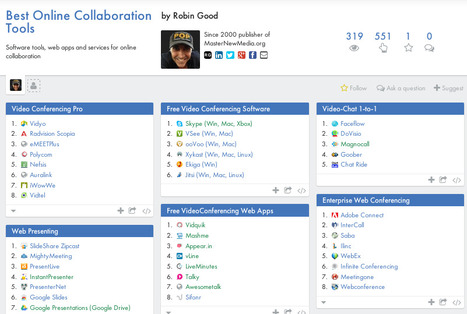
Software tools, web apps and services for online collaboration
Robin Good's insight:
If you are looking for a bird's eye view on what alternative collaboration tools are now available for different kind of projects and purposes, I do have what you are looking for. The new Best Online Collaboration Tools 2014 directory is now public. It contains over 370 collaboration tools organized in over 25 different categories ranging from video-conferencing to screen-sharing, collaborative reviewing and many more. The tools listed have all been checked and verified and represent my own personal census on what is available today for each one of the categories listed. There is no attempt (yet) to provide individual evaluations or recommendations, though I have tried to subjectively rank tools in each category according to their value and importance. The directory is updated weekly. New suggestions, comments and request for revisions and changes are highly welcome. Free to use. Try it out now: https://best-online-collaboration-tools.zeef.com/robin.good (370+ tools) Previous editions:
Scoop.it!
Robin Good's insight:
Slides has released some interesting new features for its good web-based presentation service. The first one is the ability to show a presentation to an unlimited audience of viewers, who can see your slide changes in sync with you, and without having to download or install anything. The second one is a new speaker note facility that allows the presenter to see not only the slide being shown, but also the next one, alongside two timers, one for the time gone and one for the actual clock time. Summary: Slides is a great HTML5 presentation creation tool, that makes it very easy to create, edit and publish presentation both online and off. Definitely worth a try. Free version available. Pricing: https://slid.es/pricing More info: http://slid.es
Scoop.it!
Robin Good's insight:
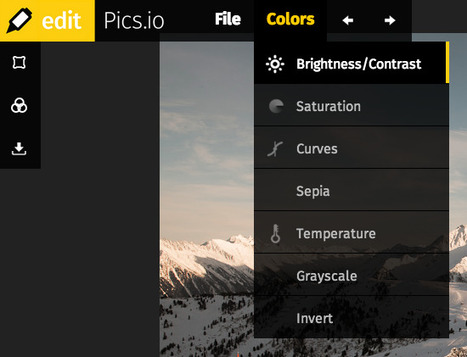
Pics.io is free online 32-bit basic photo editor that works also with very large images. It runs in your browser, is fast and you can see edits and adjustments in real time. Image editing features include cropping, rotation, bright/contr, saturation, curves, invert, temperature and a few effects. Key strengths for Pics.io are speed, extreme ease of use, and a thin command set useful for all basic image editing work. No need to register, download or login. It works instantly. Free to use. Try it out now: http://edit.pics.io/
Scoop.it!
Robin Good's insight:
WePresent is an hardware/software combination which allows any organization to set up a conference or event room without running messy cables from the projector to the presenter's computer. The unit also doubles up as a WiFi access point and projector access point. Key features: http://www.wepresentus.com/features.html More info: http://www.wepresentus.com/ FAQ: http://www.wepresentus.com/help.html Price unavailable online. Purchasing info: http://www.wepresentus.com/contact.html

Moses B. Tambason's curator insight,
January 24, 2014 8:44 AM
This is very good for charities use like Tambasons Global Human Services Inc at www.tambasonsglobalhumanservices.org
Scoop.it!
Robin Good's insight:
Live Pics.io is a free new web which allows you to showcase in real-time your favorite images, photos or illustrations while talking and listening with the other parties connecting in. No registration or login required. You just upload your selected images and share the link to the meeting room that you are given and you are ready to go. Supersimple. Free to use. Try it out now here: http://live.pics.io
Scoop.it!
Robin Good's insight:
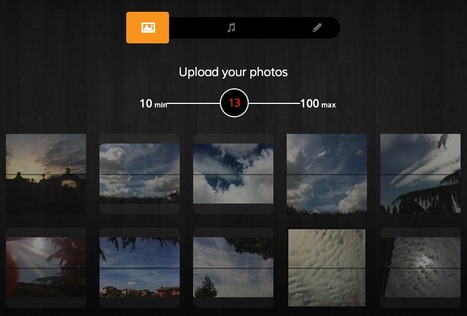
Evver is a free web app which allows you to create music slideshows with extreme ease. You simply select your favorite pictures (from 10 to 100), you pick up a song, among the available soundtracks, and the rest is automatically done for you. You can re-arrange the order in which the photos will be shown in the final video and delete the ones that you don't want to use and you are set to go. Evver edits your pics in sync with the music and creates a music video that can be easily shared on any social media or embedded to your site or blog. My comment: Very, very easy to use. The selection of music tracks that you can use is presently very limited. The final result is good, but - as you can see from my sample - not as good as it could be. Free to use. Try it out now: http://www.evver.com/ Similar tools: http://slide.ly Sample video (created by me): http://www.evver.com/play/49ef08ad6e7f26d7f200e1b2b9e6e4ac
Scoop.it!
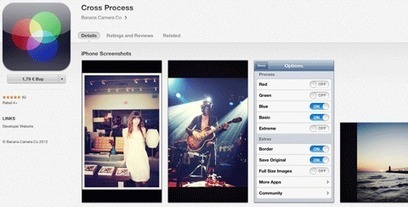
Check out these cool apps to create and edit outstanding images and videos for Instagram.
Robin Good's insight:
Here's a great selection of 20 apps for Instagram that allow you to add special visual effects, shoot in the dark, add text and graphic elements to your images or create video clips with your best shots. Short reviews easy to understand. Useful. 7/10 Full set of reviews: http://www.socialmediaexaminer.com/instagram-photo-and-video-apps/
Scoop.it!
Robin Good's insight:
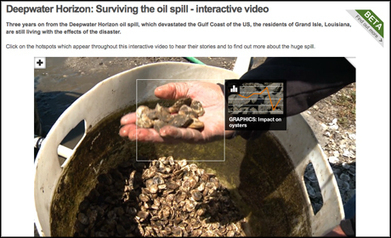
Here is a good collection of nine web tools that allow you to create multimedia-rich, visual story-telling, immersive stories and reports alongside some impressive examples. My comments: Great tools list showcasing a nice array of visual presentation tools that can be effectively for journalistic reporting. Useful. Resourceful. Great examples. 8/10 Original article: http://www.journalism.co.uk/news/9-tools-for-journalists-to-produce-immersive-stories/s2/a554425/

21st Cent. Learners's curator insight,
November 15, 2013 1:58 PM
Written for journalists, this article is of interest to educators too. Some grat tools for creating great multi-media presentations. Imagine what learners might produce with these...
Moses B. Tambason's curator insight,
November 15, 2013 10:21 PM
Watch this video to help the special needs in Africa this thanks giving holiday http://www.africatube.net/video/932/Neglected-people-of-Africa-need-your-help ; 
Gianfranco Marini's curator insight,
November 17, 2013 1:21 PM
Da http://www.journalism.co.uk 9 strumenti web based per lo storytelling. Si tratta di strumenti che consentono di realizzare storie visuali con elementi multimediali e interattivi.
Utili per la content curation e per realizzare presentazioni.
Possono essere utilizzati senza problemi nelal didattica per realizzare raccolte e/o narrazioni di eventi e/o problemi di carattere disciplinare e interdisciplinare.
Scoop.it!
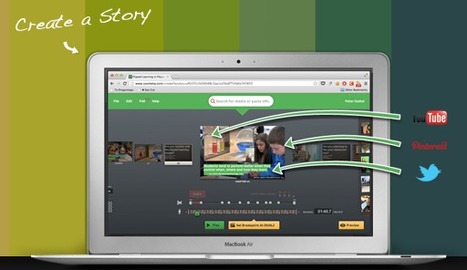
Metta helps turning stories into short movies out of pictures, videos, text and sounds that are already published on the web. Polls and quizzes can also be embedded anywhere inside a video presentation to get controlled responses from viewers. Via Baiba Svenca
Robin Good's insight:
Baiba Svenca's insight: Metta (which is the former Soo Meta) is a versatile web application that lets you create presentations with text, images, videos and voice recordings, as well as create polls and stories. Metta is integrated in Edmodo. It is a great tool for flipped classrooms.

Bad Spoon's curator insight,
October 10, 2013 12:44 AM
Une outil de Storytelling vraiment prometteur, permettant de créer des vidéos narratives très facilement et de recueillir immédiatement le feedback des spectateurs 
Ricard Garcia's curator insight,
November 12, 2013 2:47 AM
Some more info about Metta (old Soo Metta). More reasons to use it! 
Ingrid Cristina Florence Yamine's curator insight,
November 19, 2013 1:14 PM
very interesting and useful one! I'll preset on it next monday!
Scoop.it!
Robin Good's insight:
Swipe is a new web app which allows you to easily create multimedia web presentations by simply uploading images and PDF files or linking to specific video clips. Once uploaded, slides can be easily re-titled and can be sorted intuitively in any order you want. Your final Swipe presentation can be shared with anyone and you can show slides in-sync to anyone viewing. You can even stop or pause video clips that are part of your Swipe presentation as they are being viewed and re-start them when you like. Swipe-based presentations can be created, edited, delivered and viewed across all kind of screen sizes and devices from desktop computers to smartphones. Cool features include the ability to preview the next upcoming slide without viewers seeing, private and public settings, and a custom timer that measures your presentation time. My comment: Excellent presentation tool for delivering in-sync slideshows. For delivering presentations to an audience you need to factor in a teleconference or audio conferencing tool for the audio part. As it is Swipe it's great for one-to-one or small group conferencing via Skype in which you want to show a presentation in sync with everyone (screen-sharing for groups on Skype is a pro option, it's paid, requires lots of bandwidth and it isn't that great if you don't a lot bandwidth). The approach used by Swipe to show slides in sync with everyone is very bandwidth effective and makes it possible to use this tool effectively in situations where participants have little bandwidth and use smartphones and tablets, in place of using screen-sharing apps which are bandwidth-hungry solutions. In private beta. Request access here: http://beta.swipe.to/ Sample presentation: http://swipe.to/3392 Help: http://beta.swipe.to/help/ Launch video from Startup Rally: http://beta.swipe.to/video/
Scoop.it!
Robin Good's insight:
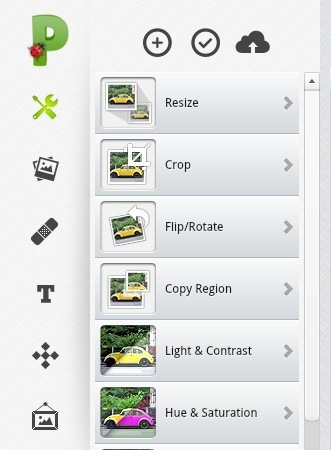
Picadilo is free web-based image editor that includes all of the features and options you would expect from a commercial app. The only thing that a pro would miss are selection tools and image layers, but for anything simpler, this is absolutely a super tool. Free to use. http://www.picadilo.com/editor/ (Thanks to Francesco Guglielmino for kindly suggesting it)
Gianfranco Marini's curator insight,
August 27, 2013 6:30 AM
Picadilo è un editor di immagini web based, si tratta di un web eare che possiede finzionalità complete per il trattamento delle imamgini e non richeide lunghi tempi di apprendimento per poter essere utilizzato. La versione libera non consente di usare gli strumenti di selezione più evoluti e di lavorare con i livelli, per il resto offre tutte el altre funzioni: cropping, resizing, rotate, flip, regolazione luminosità, contrasto, saturazione,esposizione, temperatura colore, selezione, ecc. E' possibile salvare il lavoro finito e condividerlo. 
Therese Dristas's curator insight,
October 7, 2013 10:52 AM
This looks like it would be a valuable resource. |






![The Simplest Way To Record and Share Screen Actions: Recordit [Mac] | Presentation Tools | Scoop.it](https://img.scoop.it/7QrXcsGdbdNelpC1cQj9iDl72eJkfbmt4t8yenImKBVvK0kTmF0xjctABnaLJIm9)












10 new features to improve your Powerpoint presentations